
This page is here to help you get the most out of GluClue.
When you first start the app on your Android phone, there will be a very short on-boarding and tutorial walk-through. I will show you some of the important areas of the app. If you have a Dexcom CGM, it is highly suggested to sign in to your account and allow GluClue to sync your sensor readings.
Starting Out
Get Instant Trends: Sync 90 Days of History. GluClue will automatically download up to the maximum 90 days of your glucose data from Dexcom, giving you immediate historical insights and trends from day one.
Main Screen
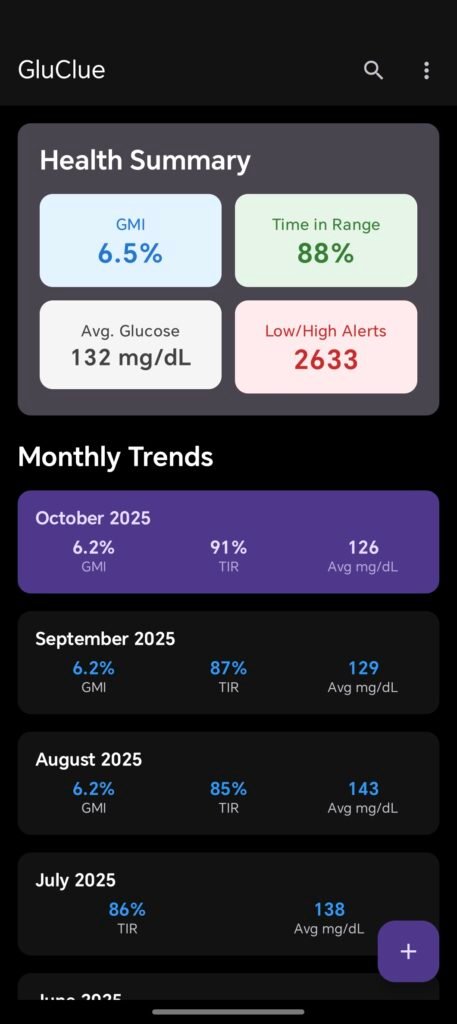
If GluClue was able to retrieve the max 90-days of data for you, great. If not don’t worry you will still have the ability to track your meals and glucose going forward and build your history with GluClue. On this screen you will see four health summary cards. You can click any one of them for a short description of what they are (or see our glossary page too). Below that is your Monthly Trends. It will always show you the current month followed by the previous months. On each card will be the month, year, and your GMI percentage, time in range, and your average glucose in mg/dL (what we use in the US healthcare system) for the month it is shown on. This can vary by month, and even by day.
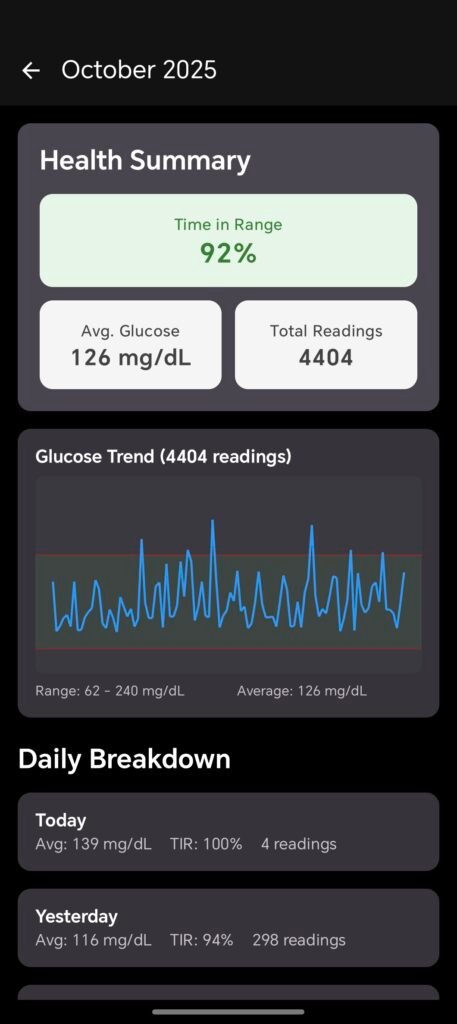
When you click on any specific month you will see the month overview. You’ll notice the heath summary cards changed, we no longer have a GMI card. That is because we need a minimum of 14-days CGM data to calculate that. Below we have a graph showing you what the month looks like and a daily breakdown.
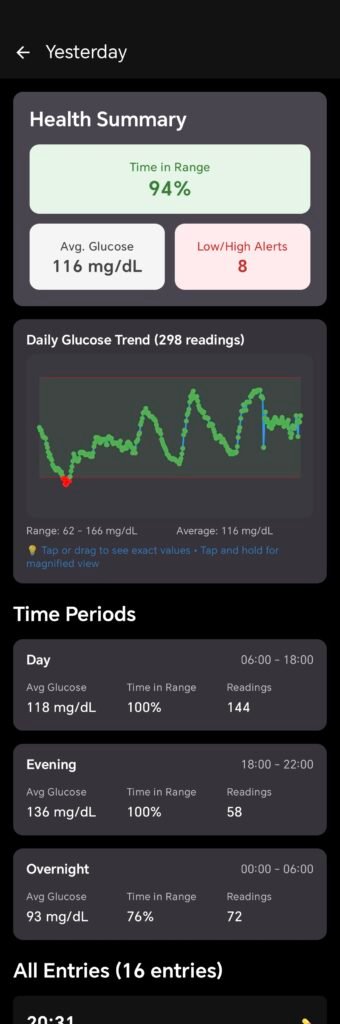
Finally, if you click on any specific day/date in that month overview you will see this Day Detail screen. This is where you will see the meals, medication, and other things you log daily.
Adding Data
From the main screen you have a + button on the lower right.
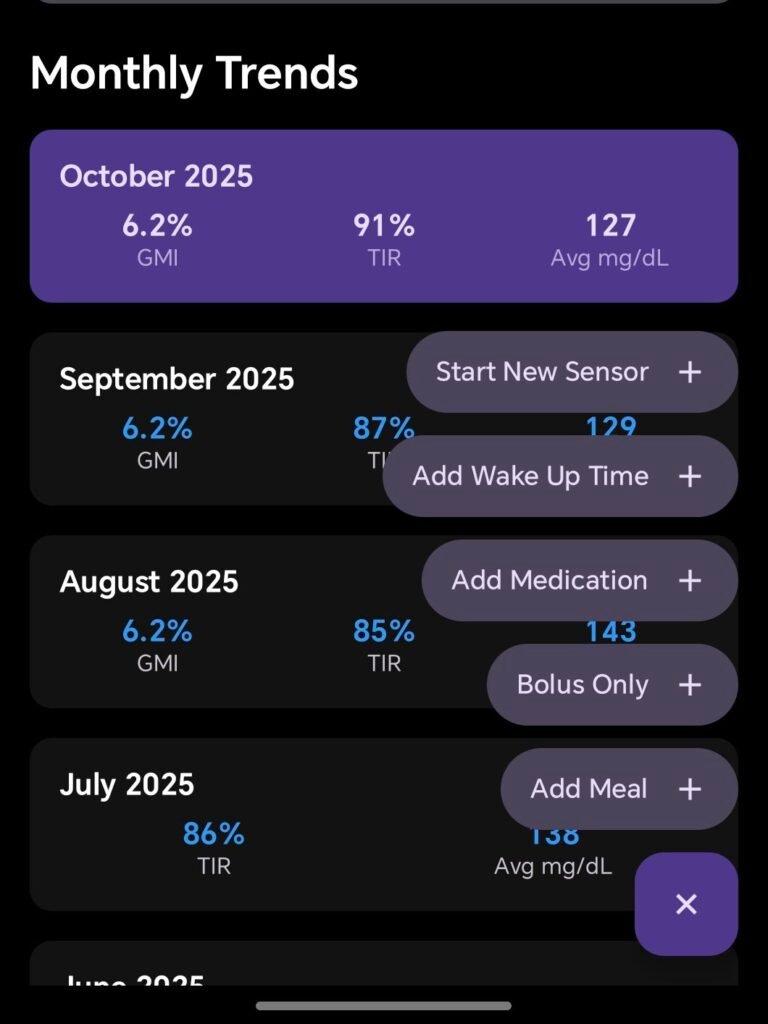
This is your Add Entry button and allows you to manually add a meal, a bolus dose (such as a correction dose), add medication(s), add your wake up time (we try to automatically detect that, but it is here as a backup), and start new sensor.
Add Meal
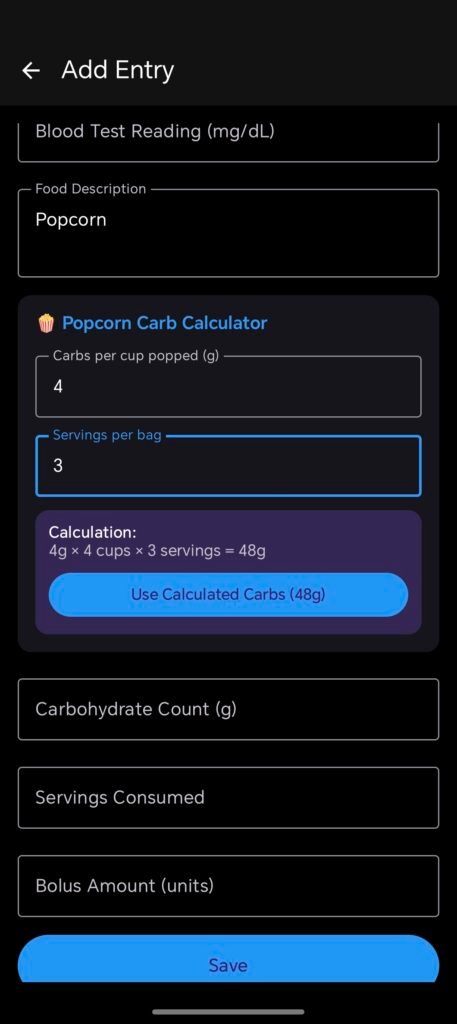
The image above is what you will be presented with. Here you can start typing your meal into the food description box, enter the estimated carbs, how many servings of those carbs, and if you need to, your bolus in units.
You can see in the screenshot that if you type “popcorn” it will expand to offer a simple Carb Calculator. This feature allows you to enter the information from the food label (Carbs per serving and Servings Consumed) and quickly calculate the total carb count for your entry.
At the top of the page you have the option to change the date and time if you are entering this for an earlier event. You can also log the blood test results if you did a finger stick blood glucose test.
Bolus Only
This screen will be a simple bolus amount entry only. Great for those times you may need a correction dose.
Add Medication
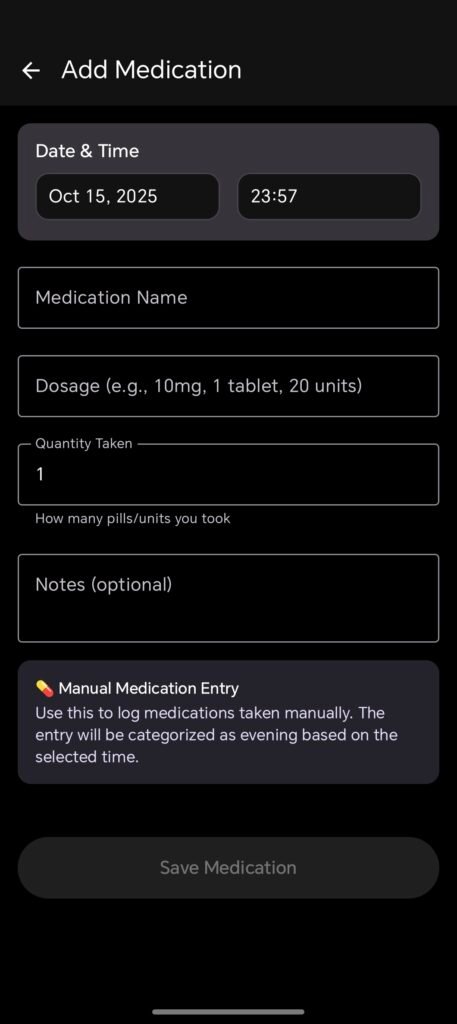
This page is linked to the Medication Cabinet (later in How-To), and as you type the medication name it will suggest one from the “cabinet” and populate the name, dosage, and quantity taken per dose (example: Metformin 500mg 1 tablet).
Add Wake Up Time
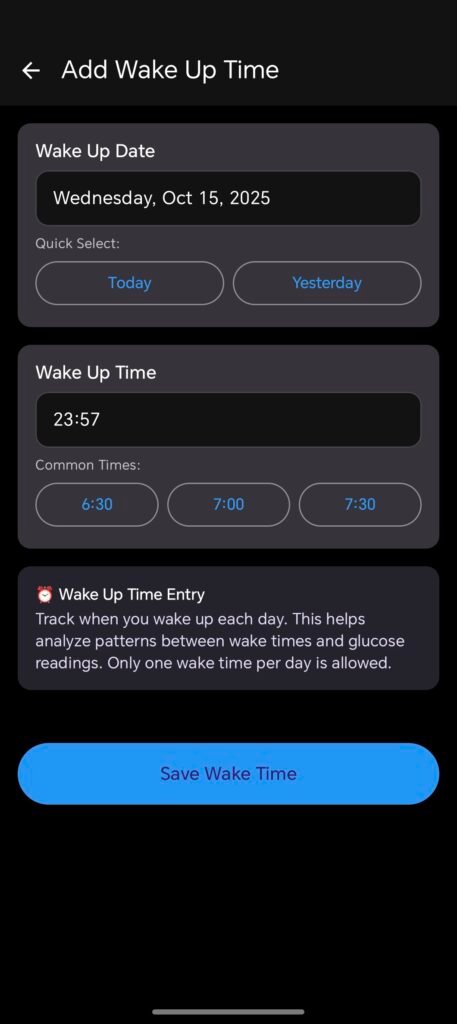
You guessed it, just a simple page to select the time you woke up with a few common times as quick buttons.
Start New Sensor
This page is also linked to the Medication Cabinet and will automatically deduct 1 sensor from your “on hand quantity”. You won’t see anything after you click the button it just removes the value for tracking.
The Menu
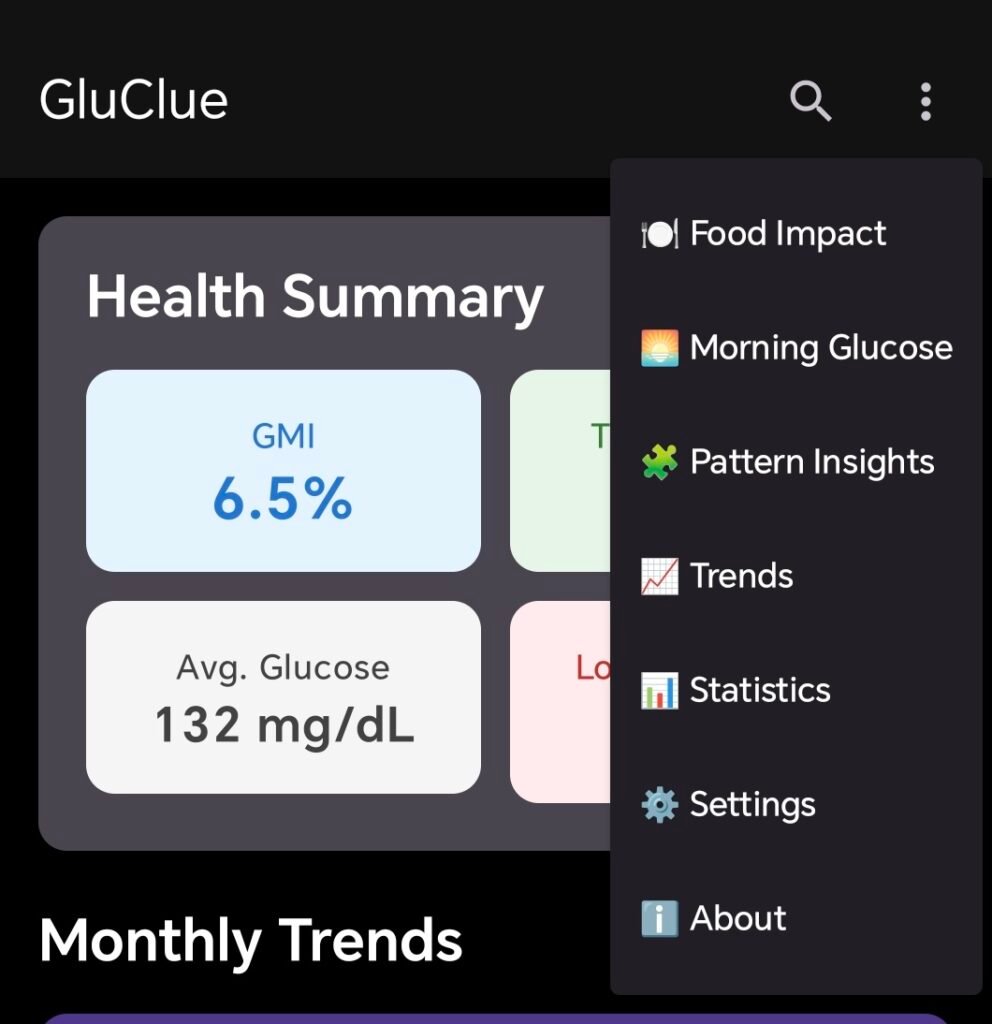
When you click the Options Menu (3-dots in the top right) you will see a list of features.
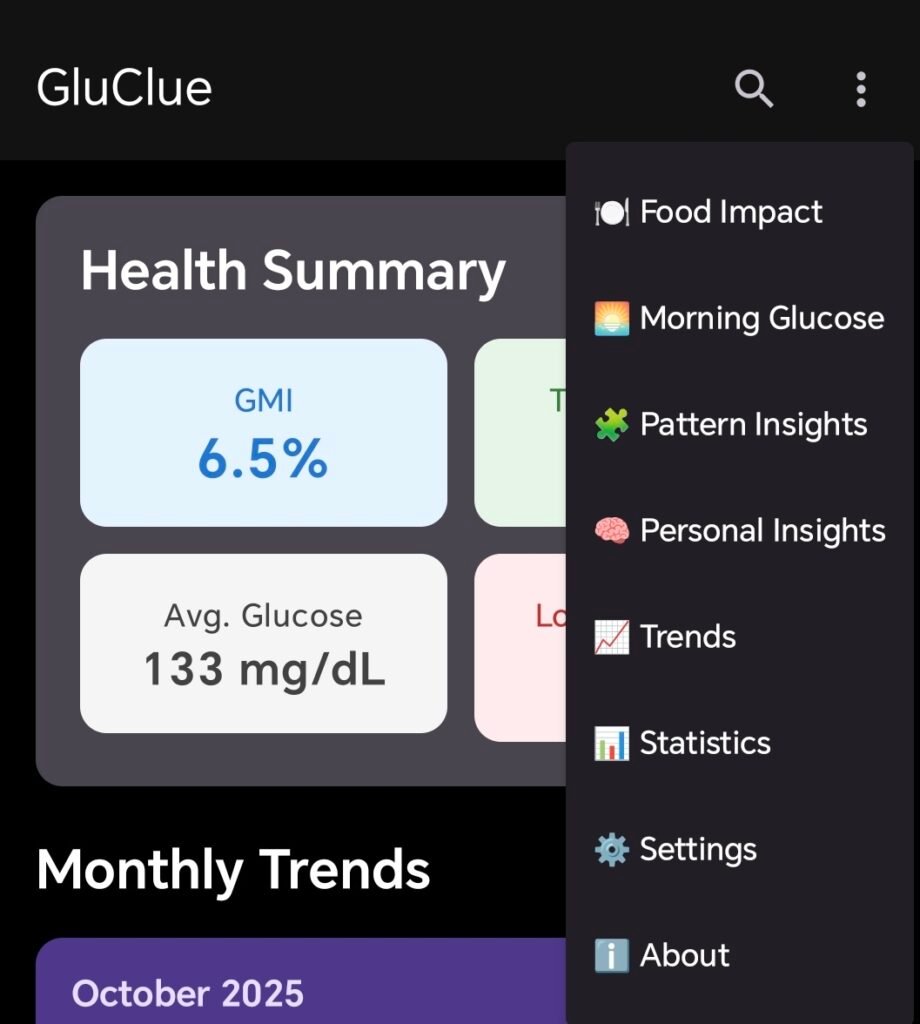
You can select: Food Impact, Morning Glucose, Pattern Insights, Trends, Statistics or go to the Settings. There is About that shows you the version number.
Food Impact
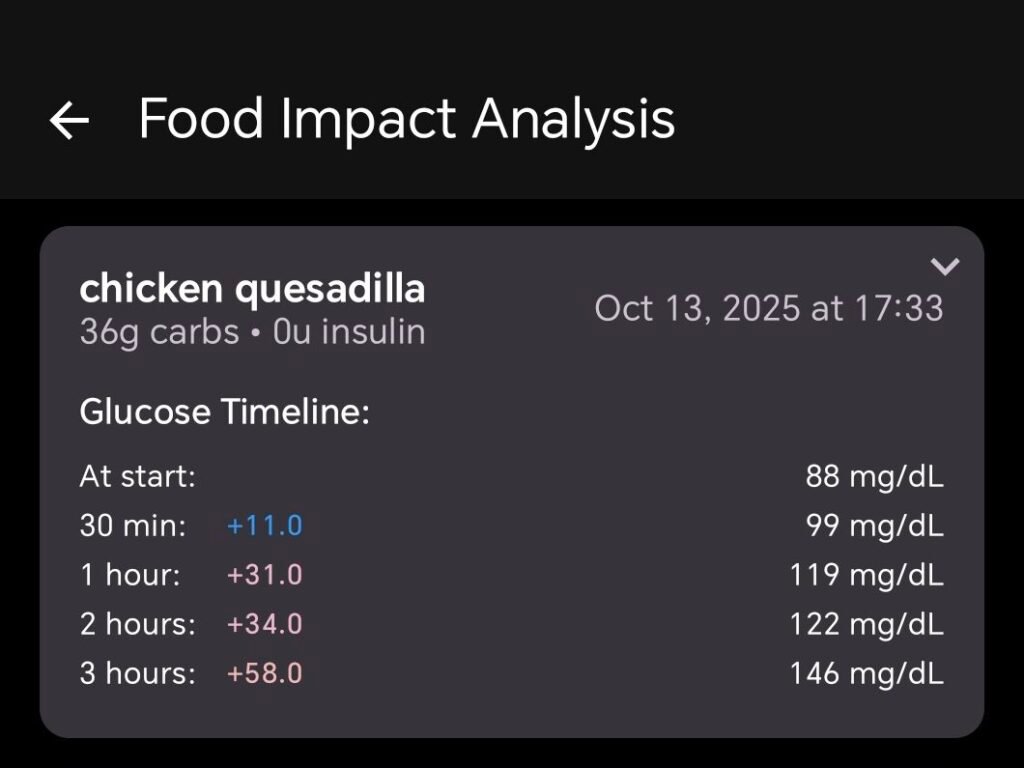
This is a powerful feature that helps you understand what your meal is doing to your blood sugar levels. When you log your meal, GluClue will start watching your glucose values at various intervals: start time, 30 minutes in, 1 hour after, 2 hours after, and 3 hours after you logged your food. This will give you insights into how much your blood sugar may have spiked and what your recovery looked like. Tap the analysis for even more details.
Morning Glucose
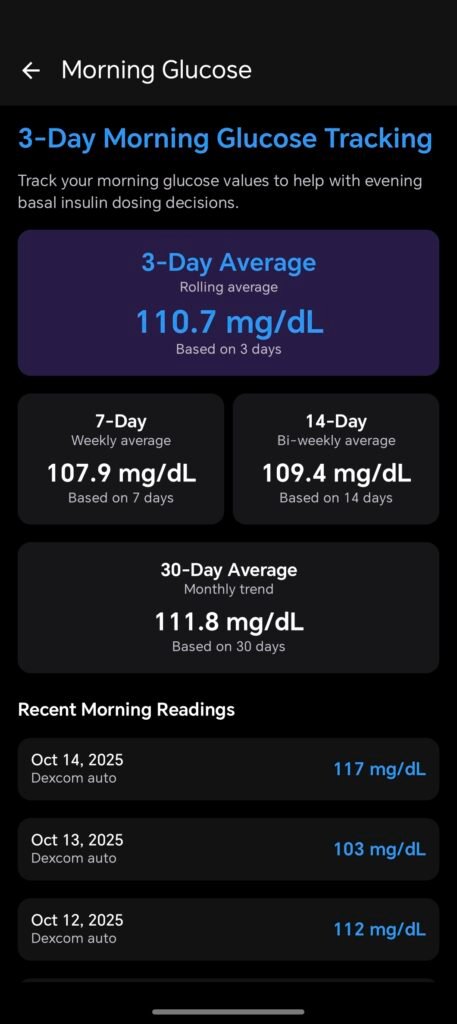
Diabetics that take insulin shots nightly know they have to monitor their fasted morning glucose averages to figure out if they need to increase or decrease their dosage. This feature will help you quickly capture that vital information.
Pattern Insights
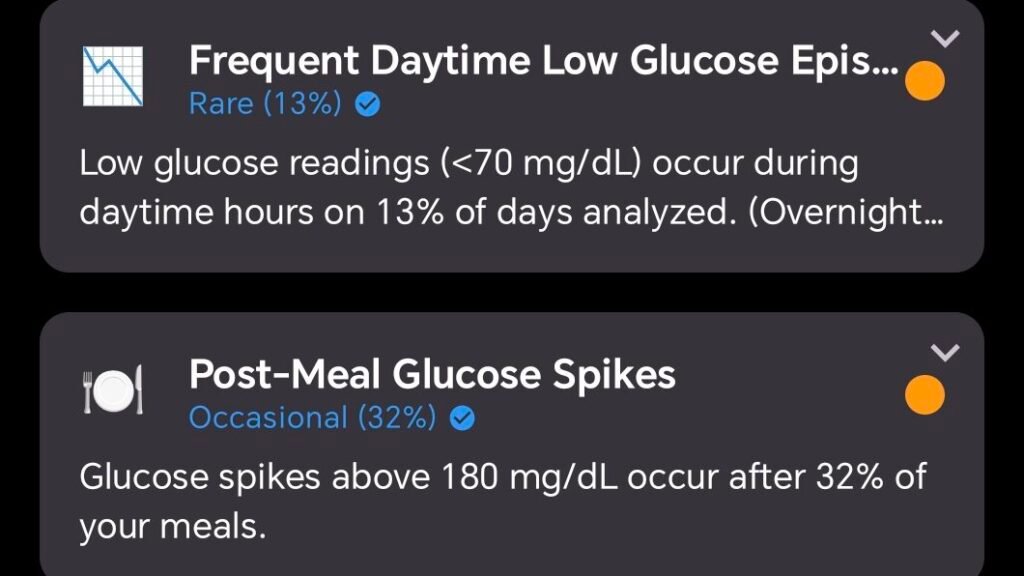
Pattern Insights: The Analysis Engine
This is the analytical engine. Its purpose is to explain the why behind the data. It goes beyond simple statistics to find correlations and connections. This is where the weather, holiday, and other factors you log are analyzed. This screen helps answer questions like, “Why do my blood sugars go up on rainy days?” or “Is there a specific time of day when I tend to go high?” It provides actionable intelligence that helps you make informed decisions to improve your control.
Personal Insights
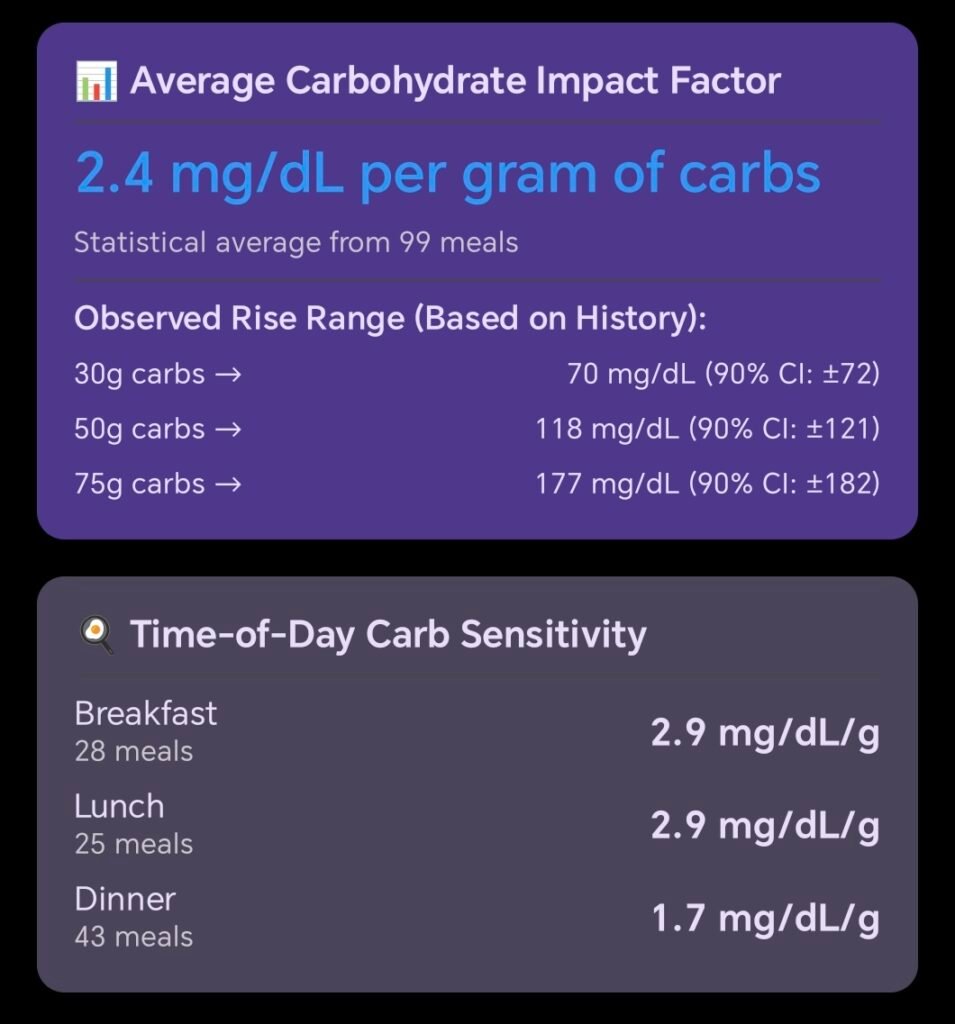
The Personal Insights analysis feature uses advanced statistical modeling to derive your specific physiological constants—like your personal sensitivity to carbohydrates and insulin—from your logged glucose, meal, and medication data.It is designed to give you personalized data points to facilitate a more targeted discussion with your healthcare provider.
Trends
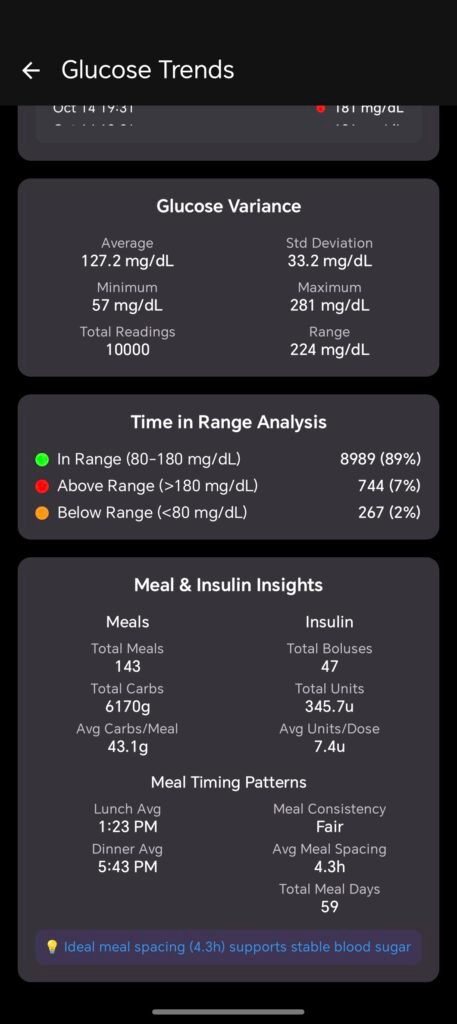
Trends: The Daily & Weekly Snapshot
This screen is your day-to-day snapshot of blood glucose, showing what is happening right now and over a short period. It’s your place for quick, immediate review. Check here to see your recent readings, how your Time in Range is holding up for the day or week, and get instant feedback on your latest meal or insulin dose. The chronological list of readings is the most important part of this screen.
Statistics
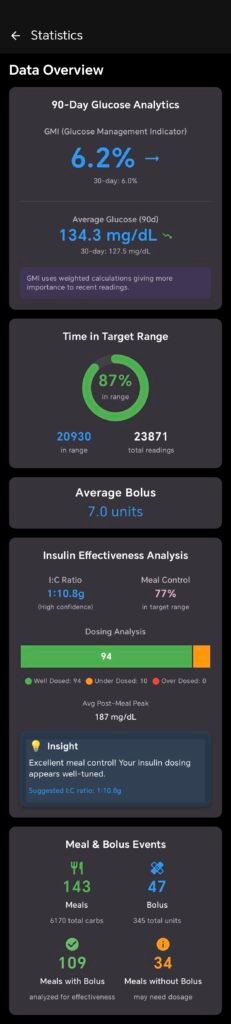
Statistics: The Long-Term Report Card
This is your long-term report card, built to show how well you are doing over an extended period, such as the last 90 days. It aggregates data to give a big-picture view of your control. Check this screen to share your overall progress with your healthcare provider. Metrics like the A1C Estimate, GMI, and Insulin Effectiveness Analysis are perfect for this screen because they show high-level performance, not just a list of recent numbers.
Settings
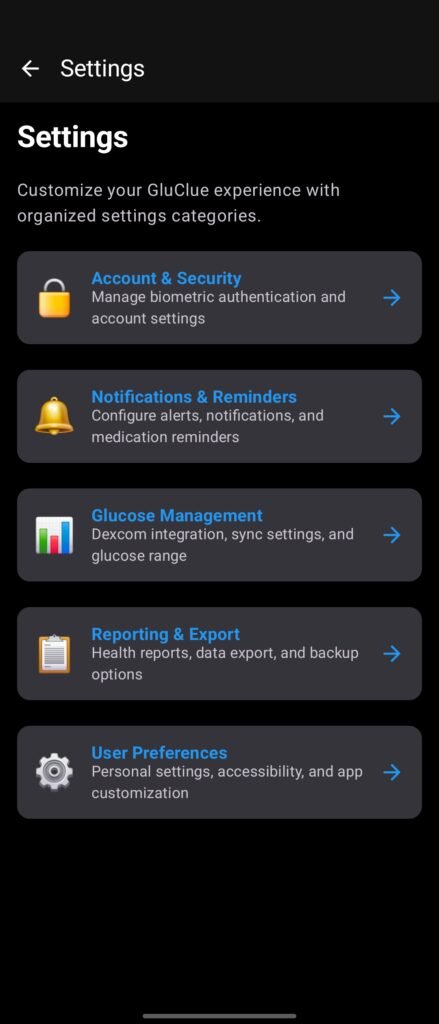
The settings area has a lot of hidden gems. Starting at the top you have Account & Security, Notifications & Reminders, Glucose Management, Reporting & Export, and User Preferences. Let’s dive in!
Account & Security
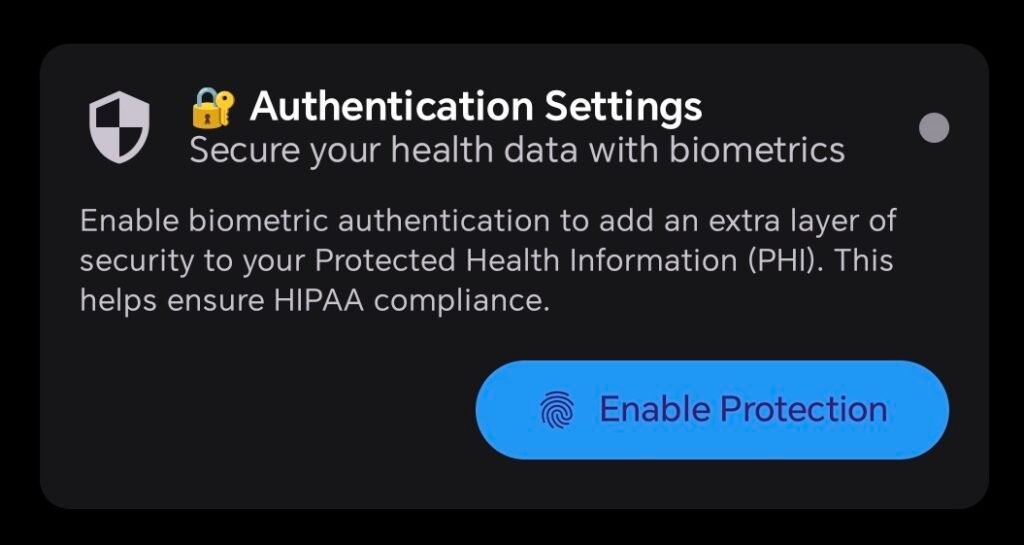
This section here allows you to enable authentication. You can use biometrics to protect GluClue and your data. This is Hipaa compliant.
Notifications & Reminders
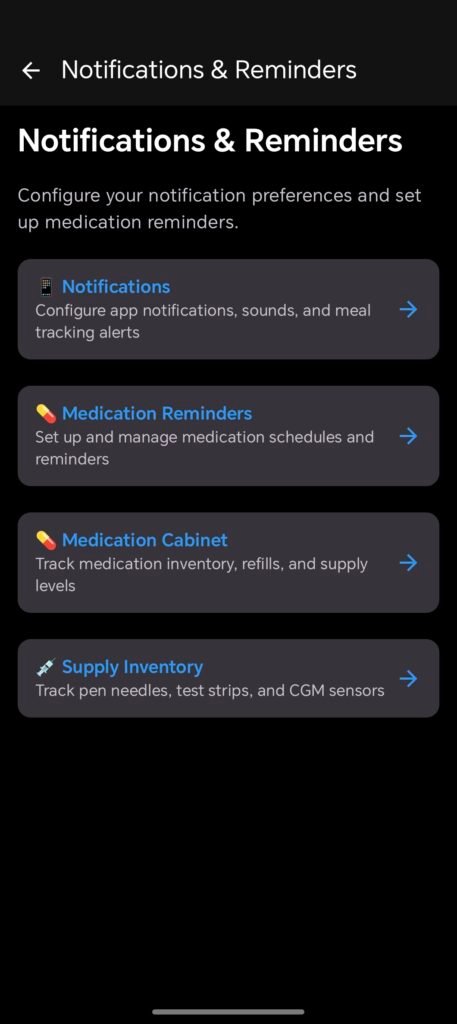
This area of GluClue holds all your alerts. When you log a meal the top option “notifications” (enabled by default) starts an on-going notification that tracks your meal, just like the Food Impact page (earlier) does. This gives you quick access to that information. Medication Reminders is the scheduled alarms for when you define you want to take your medications. You can setup a group of medications with a single time or a single medication with multiple times. GluClue is super flexible.
Medication Cabinet
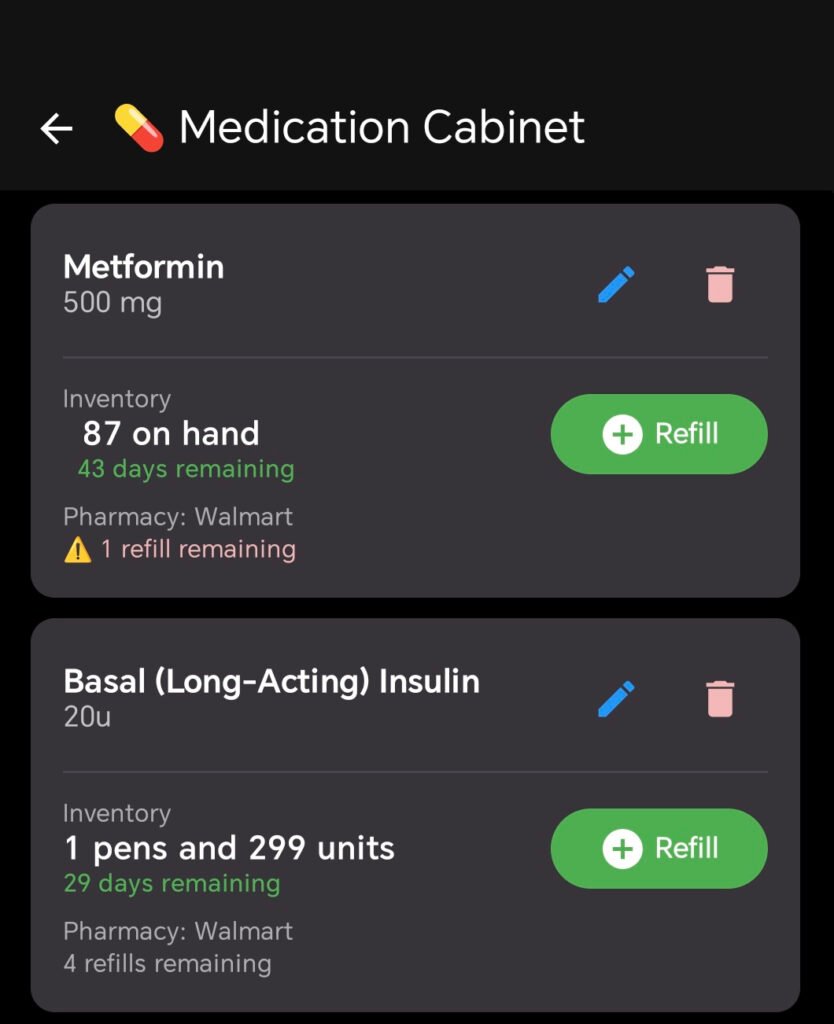
This houses your entire virtual cabinet of medications. Here you can keep track of what you have, how many you have of it, and where you get it from. GluClue can even remind you when you are nearly out and when you need to request a new prescription. When you click “take” in the notification or you click “Add Medication” (earlier) it will automatically deduct the quantity to keep a running total of remaining on-hand. Just picked up your refill? Just click the button and add the number in the bottle and the total updates. Easy.
Supply Inventory
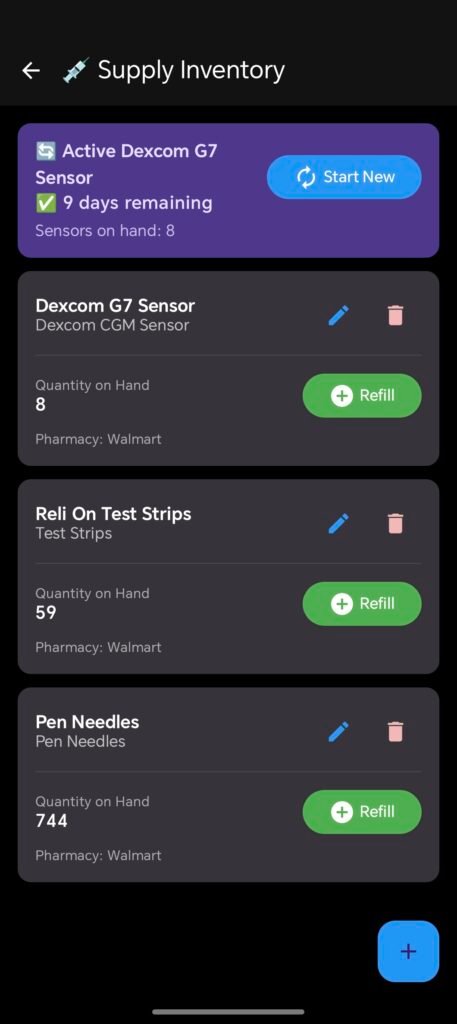
Just like the med. cabinet, this tracks your supplies and automatically deducts from what you have. Log an insulin dose? It deducts from your insulin units AND 1 pen needle. Logged a blood glucose reading? GluClue will automatically reduce your test strips.
Glucose Management
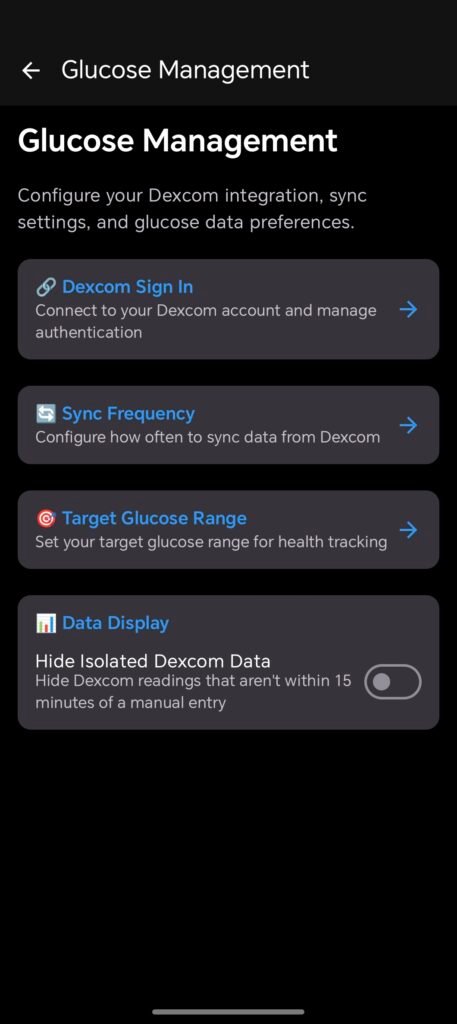
This area is really focused on Dexcom integration. The first section is where you go to sign in to your Dexcom account and you can force a sync anytime in that page.
Next you have Sync Frequency. This gives you the power to control how often you want your phone to sync with the Dexcom serve and retrieve your glucose value: from every 15 minutes to 4 hours. You can even define the day by morning, evening etc (great for reducing sync when you are sleeping and don’t need to watch as frequently).
Target Glucose Range is where you define your personal goal range that the app uses to calculate your Time in Range (TIR).
Finally, your Dexcom CGM reads your glucose every 5-minutes, that can be around 290 data points per day. This “Hide Isolated Dexcom Data” allows you to hide that from the Day Detail screen (later). By default we group that data separately, but some users may wish to only see more relevant information such as medications, meals, etc.
Reporting & Export
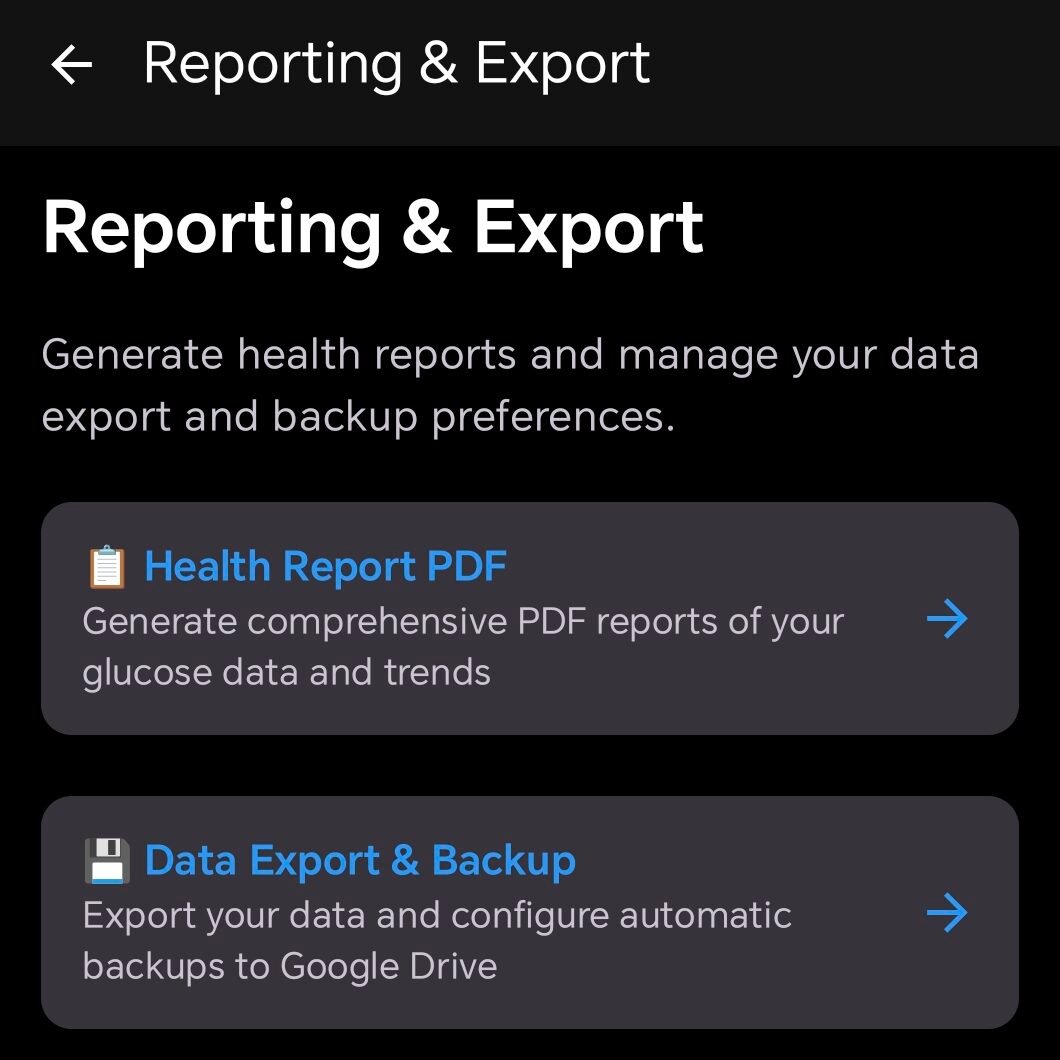
This area allows you to access your data in different ways.
Health Report PDF
The health report generates a PDF file (usually a single page), that you can bring with you to your doctor visit and discuss your diabetes treatment. This will show your 90-day glucose average, time in range percentage, your morning glucose (3-day, 7-day and 30-day fasted) and any concerning highs and/or lows you had with your blood sugar. The PDF will also print your current inventory of medications so you can keep your healthcare provider up to date on what you take and how many you have remaining.
Data Export & Backup
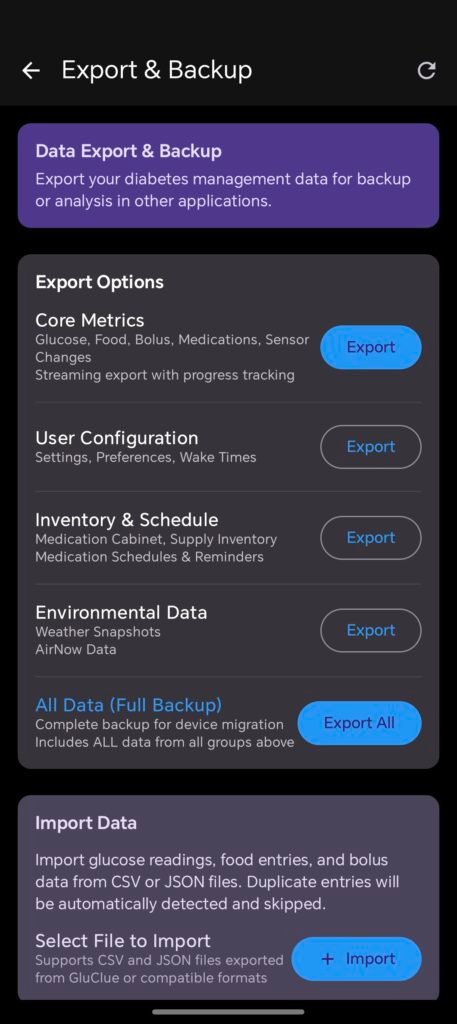
Your data is yours. GluClue does not lock you in or prevent you from seeing your data at all. You have several options of exporting:
Core Metrics (all glucose values, food, bolus entries, medication logged and in cabinet, sensors started/changed).
User Configuration (just settings and preferences).
Inventory & Schedule (your entire medication cabinet, medication reminders, supply inventory).
Environmental Data (all the weather and AirNow data snapshots for your location you set up) — below
All Data (this is a full backup of all of the above).
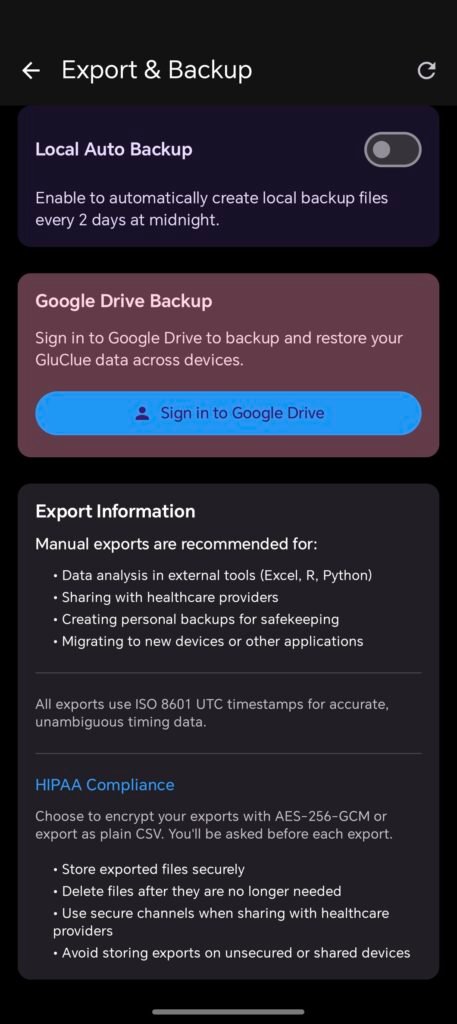
This allows you to export just portions to examine on your computer or a complete backup of everything. Import any of those at any time. In addition you can export your data in CSV file plain or encrypted with a password to keep your data safe, just don’t forget the password!
You also have the OPTION to sign in with your Google account and backup/restore with your own Google Drive storage and can also enable automatic LOCAL backups every 2 days to help protect from app data loss.
User Preferences
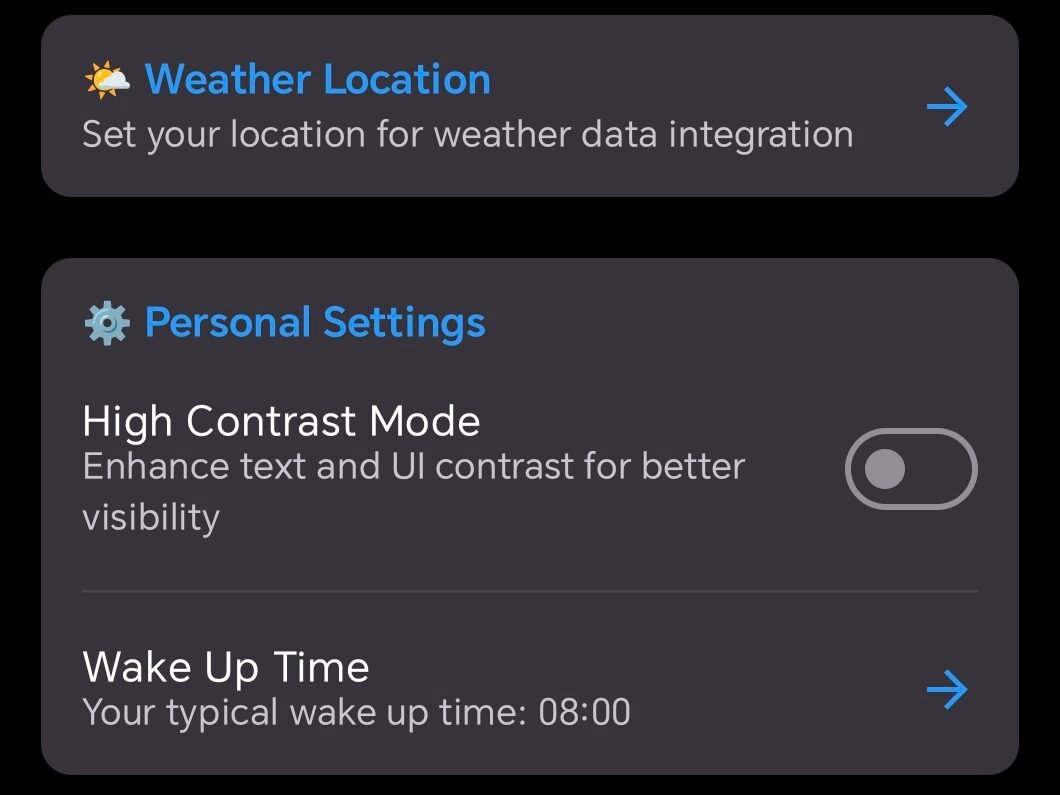
The final section of settings: user preferences.
Weather Location
Our optional Weather Insights feature helps you discover new patterns. By opting in and providing your ZIP code, you’ll empower GluClue to retrieve historical weather data (including temperature, precipitation, and air quality) and integrate it with your glucose trends. See if a rainy day or a sudden temperature drop has an impact on your blood sugar, helping you uncover hidden connections. This is all done on-device only.
Wake Up Time
GluClue attempts to determine when you wake up, and setting this value gives the app a window of time to watch for your activity to know awake moments (great for people that work swing shift or over night).
You may have noticed that magnifying glass next to the 3-dot menu at the top of GluClue, that is to search for previous meals.
Search
When you search it brings up any meals matching from your previously logged entries. It will show you small information cards about the meals impact and if you click on it you’ll see the full Food Impact card for that specific meal. Super handy!